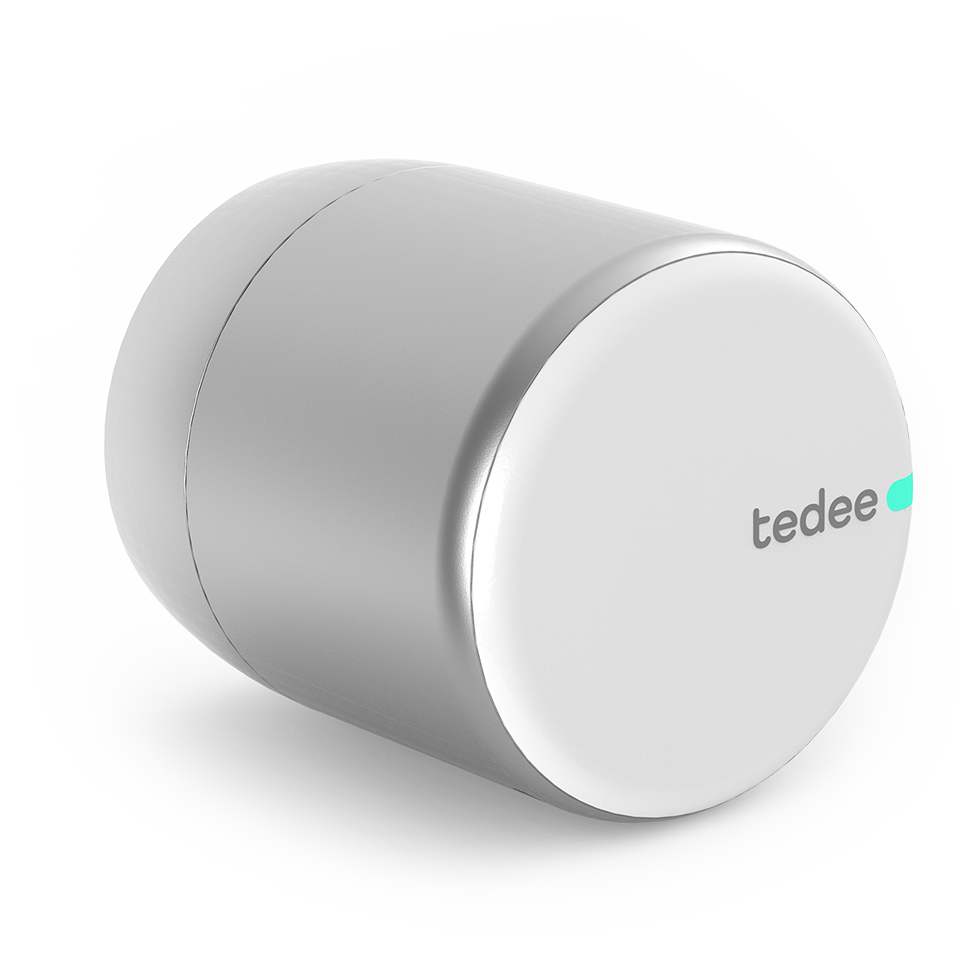
Tedee Smart Lock Integration
Content languageEnglish
Description
Getting started
This Library lets you control any tedee lock from Loxone. We assume that you have already installed the Tedee Lock at your door and have used the tedee iOS or Android App to install both the Tedee Lock and Bridge. Here are some key points to get you started with the integration:
- Initial Setup: To get started, you'll need a Tedee Bridge connected to your local network. Importantly, the bridge must have internet access to obtain and periodically refresh an access certificate for paired devices. - Local Network: The API functions over your local network, allowing your integrations to communicate directly with the Tedee Bridge without requiring external internet access for the API calls. - Device Pairing: Make sure you have at least one Tedee Lock paired with the bridge to control it via the API.
Enabling Bridge API
Before you can use the API you must enable it on the Bridge using Tedee mobile application. Open the Tedee-App and select the Bridge which is connected to the Lock you would like to integrate -> Go to Settings -> Select API -> then toggle the switch button in order to turn on the API.
As we cannot handle the token encryption in Loxone we need to switch "Encrypted token" off. Please make sure the local network is secured!
From the API view we need the following two values:
- Token: This is the actual token that must be included in every API request for authentication, functioning similarly to a password, so keep it secure. - IP Address: Indicates the local network address of the Tedee Bridge where the API will be accessible.
The third value we need can be found in the Lock information. Select the Tedee-Lock which you would like to integrate (need to be paired with the Bridge from the prior step) -> Settings -> Information -> Device ID
- Device-ID: This is the ID of the lock we like to control.
Loxone Config
After the we enabled the Bridge-API we need to configure the Loxone Miniserver. Please follow the steps below:
1. Open the Loxone Config Software and connect to your Loxone Miniserver 2. Download the "Tedee Smart Lock Integration" template from the Loxone Library 3. Add the template to your Virtual Outputs 4. Add the template to your project after downloading and importing it 5. Replace the IP Address we obtained when activating the Bridge API with the <BRIDGEIPADDRESS> in the "Tedee Controls VO" Address Field 6. Replace the Device-ID we obtained from the lock with the <LOCKDEVICEID> for all three commands (lock, unlock & unlockAndPull) in the Command On Field as well as the Token from the Bridge API with the <APITOKEN>
The unlock command will only unlock the lock and will not pull the spring even if you have configured the lock to pull the spring with unlocking. The unlockAndPull command will always pull the spring regardless of the current state of the lock.
Now you can connect the Virtual Output Commands for example to your NFC Code Touch Air:
Lock States
We will use Webhooks to obtain the locks state. Webhooks allow information from the Tedee Bridge to arrive in the Loxone system instantly.
1. Create a Virtual Text Input in your project in Loxone Config 2. Give the Virtual Text Input a unique name - we will need this name later 3. Create a new user in your loxone project (is needed for the tedee bridge to trigger the Virtual Text Input) - and remember the username 4. Give the user you have just created a secure password and remember it - we will need it later 5. Grant the user you have just created "Web Interface/Apps" rights 6. Authorise the user you have just created for the Virtual Text Input you have just created 7. Remember to Save your project to the Miniserver otherwise the Bridge cannot send anything to Loxone 8. Generate a Basic Auth header from the username and password of the user you have created in your loxone project - you can for example use this website for it 9. Enter the IP-Address of your Tedee-Bridge in the browser (your computer must be in the same local network as the bridge) 10. Authorise yourself on the site with the API-Token from the tedee Bridge API 11. Prepare putting the webhook on the Tedee Bridge by clicking on PUT /callback and "Try it out" 12. Obtain the IP-Address of the Miniserver - it will be needed in the next step 13. Replace <IP_MINISERVER> with the IP-Address of your Miniserver, <VIRTUAL_INPUT_NAME> with the name of your Virtual Text Input and <BASIC_AUTHORIZATION> with the Basic Authorization Header we created earlier in the text below, put it in the request body and click "Execute"
[ { "id": 1, "url": "http://<IP_MINISERVER>/dev/sps/io/<VIRTUAL_INPUT_NAME>", "method": "GET+NO_PARAMS", "headers": [ { "Authorization": "<BASIC_AUTHORIZATION>" } ] } ]
If you manage multiple locks with one bridge you might need to enter "id": 1 for the first and "id": 2 for the second lock if you like to integrate both locks in Loxone.
You can read the lock´s state (open, closed, etc.) and battery level using a Command Recognition Block. You can simply copy both blocks from the tedee smart lock.Loxone file here, paste them into your project and connect them both with the virtual text input you have created.
If you rather create your own Command Recognition Blocks you can read out the locks state and battery level with the following text in the Block:
Lock-State:
\istate=\i\v
Battery Level:
\ibatteryLevel=\i\v
The different lock states are documented here: https://docs.tedee.com/bridge-api#tag/Webhook-events/Lock-status-changed
Inputs and outputs · 3
| Name | Type | Command | Unit |
|---|---|---|---|
| lock | VirtualOut | v1.0/lock/<LOCKDEVICEID>/lock?api_token=<APITOKEN> | |
| unlockAndPull | VirtualOut | v1.0/lock/<LOCKDEVICEID>/unlock?mode=4&api_token=<APITOKEN> | |
| unlock | VirtualOut | v1.0/lock/<LOCKDEVICEID>/unlock?mode=3&api_token=<APITOKEN> |
FAQ
No questions have been answered yet.
Questions and answers
Status
OpenIch habe Probleme den Status in Loxone abzufragen. Das Schloss lässt sich öffnen, schließen oder nur die Feder ziehen. Allerdings weiß ich nicht wie das mit dem Staut genau funktionieren soll. Gibt es dazu eine genauere Erklärung? Ich würde gerne in der App/Webinterface den Batteriestatus und den "Tür-Status" (offen/abgeschlossen) sehen.
Allerdings bekomme ich das nicht so recht hin.
Ich würde mich über eine Rückmeldung freuen
Grüße Christian
No replies
Abrufen von Eingängen wie z.B. Batteriestand
OpenGibt es eine Möglichkeit auch Eingänge abzurufen insbesondere mit der Funktion der Virtuellen Eingänge.
https://api.tedee.com/swagger/index.html
No replies
Einbindung in die Config
OpenKönnen sie bitte ein Beispiel für die Einbindung in die Loxone-Software veröffentlichen.
Danke Matthias
1 reply
Hey, we are shooting a movie explaining how to integrate the tedee lock over local API (and the bridge). For now, please refer to: https://tedee.com/how-to-integrate-tedee-with-loxone-smart-home-system/ You can also contact our German distributor, SoulAr at [email protected] Best Andrzej Kaszycki / tedee
Can you be more specific in the manual about feedback?
OpenI am trying to get states and batt levels, but I cannot seem to manage..
Can you maybe expand the template with the http inputs?
3 replies
Hey Tim,
We will upload a new version early next week. Please, check the video made by our German distributor. It's already using local API but if you send me your email you used to register in the tedee app we will enroll you to the beta testers program tomorrow.
Best Andrzej Kaszycki
Hey andrzej,
Thanks for the quick reply! I have the mormal Api running, and did that a few times already, but i can never manage to get the stats. So that is only possible in the local? I would prefer not to intergrate beta at a client.. (3 locks in total)
Thanks
Tim
Hey,
yes, we will make the adjustments to the current library before we upload the local API version. In the meantime, please get in touch with Stephan Düchtel from SoulAr/Duttenhofer: [email protected] He will explain everything in details.
Best Andrzej Kaszycki
Any news?
OpenHi, any news on the local api update?
Thanks!
Tim
1 reply
Hey Tim,
it's public. Please, switch on the "Preview tester" feature in the tedee app settings. Here is the API documentation: https://docs.tedee.com/bridge-api As for the integration, here is the video: https://youtu.be/rLeNDcIv_ZA?si=aBZCcwNl8dsP8ioZ
Best
Andrzej Kaszycki
Pull
Openis there a posibility for just pull also with the api
No replies
Log in to rate, comment or ask a question. Log in
Ratings and comments
No ratings or comments yet.
Log in to rate, comment or ask a question. Log in