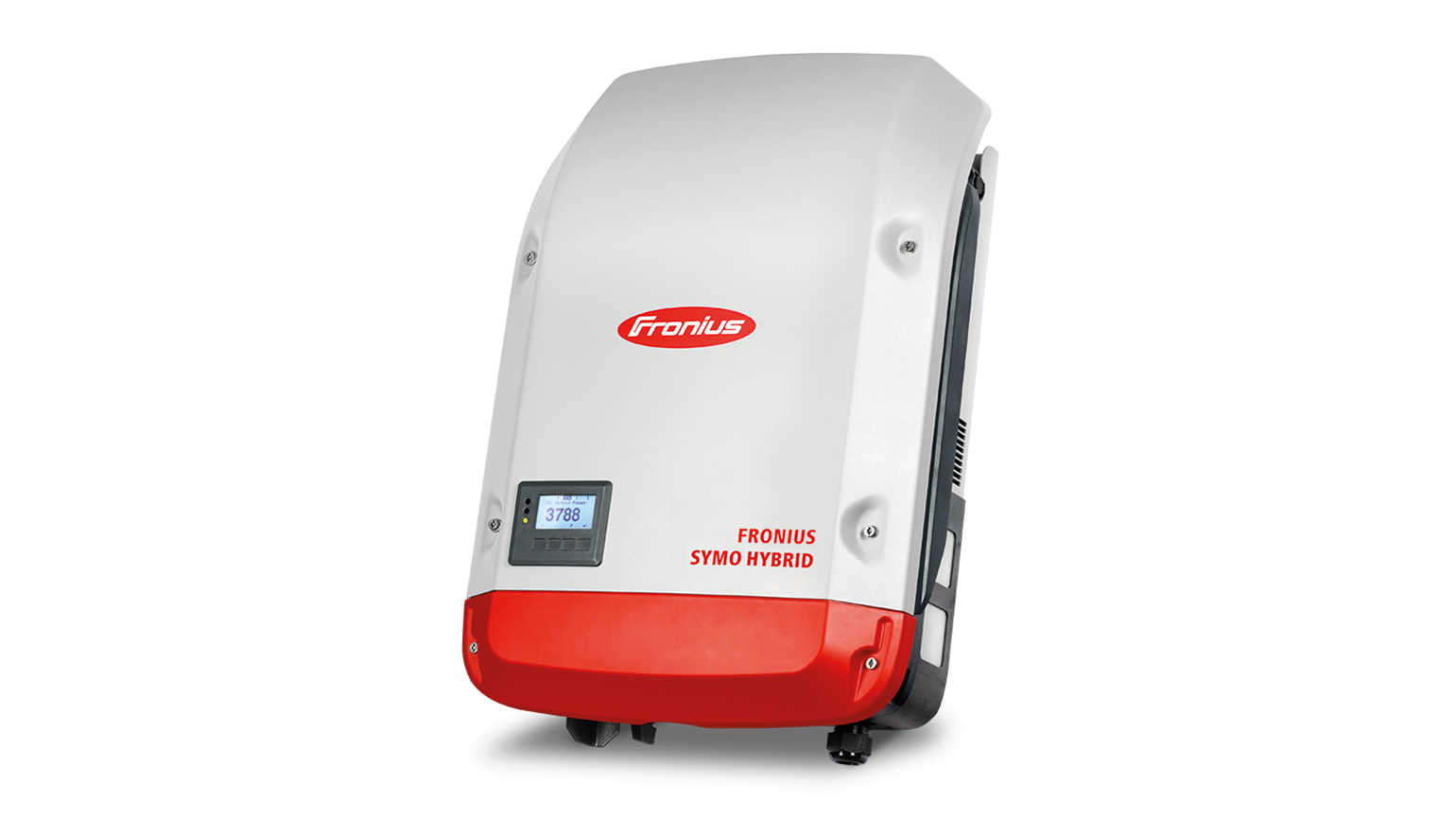
Fronius Symo Hybrid
Content languageEnglish
Description
If you have a Loxone Miniserver Gen. 2 you can directly integrate Fronius devices via the Fronius plugin in Loxone Config. This allows for quick and easy integration of Fronius components, which are automatically detected on the network. Communication settings on the GEN24 and SnapINverter are configured automatically after entering the technician or service password. Please note: any existing integration (via these templates or direct) must be deactivated or removed before using the plugin.
For systems using the Loxone Miniserver Gen. 1 and Miniserver Go (Article Number 100139), the following integration is available.
Integrate your Fronius Symo Hybrid into the Loxone SmartHome and monitor and control it. Fronius offers two open interfaces for this purpose, which can be used for the connection. This means that a wide range of use cases can be implemented.
Technical framework conditions and signal description
Fronius offers two open interfaces for connection to the Loxone SmartHome. The Fronius Solar API is a proprietary interface that can be used to read data from the Fronius PV system. SunSpec Modbus TCP is a standardized interface that can be used to control the Fronius inverter and the PV battery.
Solar API The Fronius Solar API is an open JSON interface based on Ethernet, which can be used to read out Fronius PV system data. A detailed description of this interface can be found in the document Fronius Solar API V1. An example of this was created in the Loxone config via the Solar API with which the following PV system values can be used in the Loxone controller.
SunSpec Modbus TCP Modbus SunSpec is an open communication protocol based on Modbus and complies with the SunSpec Alliance standard. This makes it possible to integrate Fronius inverters into third-party systems via Modbus. SunSpec Modbus TCP can be used not only to read out data from the PV system, but also to control the Fronius inverter and the PV battery.
All these values can be used to specify fixed charging or discharging capacities as well as charging and discharging windows in which the inverter can operate independently. Details can be found in the document Fronius Datamanager - Modbus TCP and RTU (42,0410,2049).
These values are only an excerpt of the available Modbus registers. A complete overview can be found in the document collection Modbus Register - SunSpec Maps, State Codes and Events in the document "Inverter_Register_Map_Int&SF_v1.0_with_SYMOHYBRID_MODEL_124.xlsx".
Establishing a connection
To ensure smooth operation, the IP address of the Symo Hybrid must be fixed. This can be done via the network router or via the network settings on the Symo Hybrid. To make the necessary settings on the Symo Hybrid, the Symo Hybrid user interface can be opened by entering its IP address in a browser. If the IP address is not known, it can be determined on the router interface or a connection can be established using the Fronius Solar.Start APP. The following communication settings must be made:
The Modbus settings can be found under: Settings/Modbus
To make these settings, the "admin" or "service" password, which were assigned when the Symo Hybrid was commissioned, is required. Please contact the owner or the PV installer who carried out the commissioning if this is not known
Connecting the Fronius values to "Loxone Energy Monitor"
Additional information
In the event of any problems with the Solar.API or SunSpec Modbus connection, we recommend updating the software of the inverter or Fronius Datamanager 1.0 or 2.0 to the latest software version. How-To Video: Performing a remote inverter update in Solar.web
Inputs and outputs · 5
| Name | Type | Command | Unit |
|---|---|---|---|
| P_Grid | VirtualInHttp | \i"P_Grid" : \i\v | |
| P_Battery | VirtualInHttp | \i"P_Akku" : \i\v | |
| SOC | VirtualInHttp | \i"SOC" : \i\v | |
| P_Load | VirtualInHttp | \i"P_Load" : \i\v | |
| P_PV | VirtualInHttp | \i"P_PV" : \i\v |
Ratings and comments
No ratings or comments yet.
Log in to rate, comment or ask a question. Log in