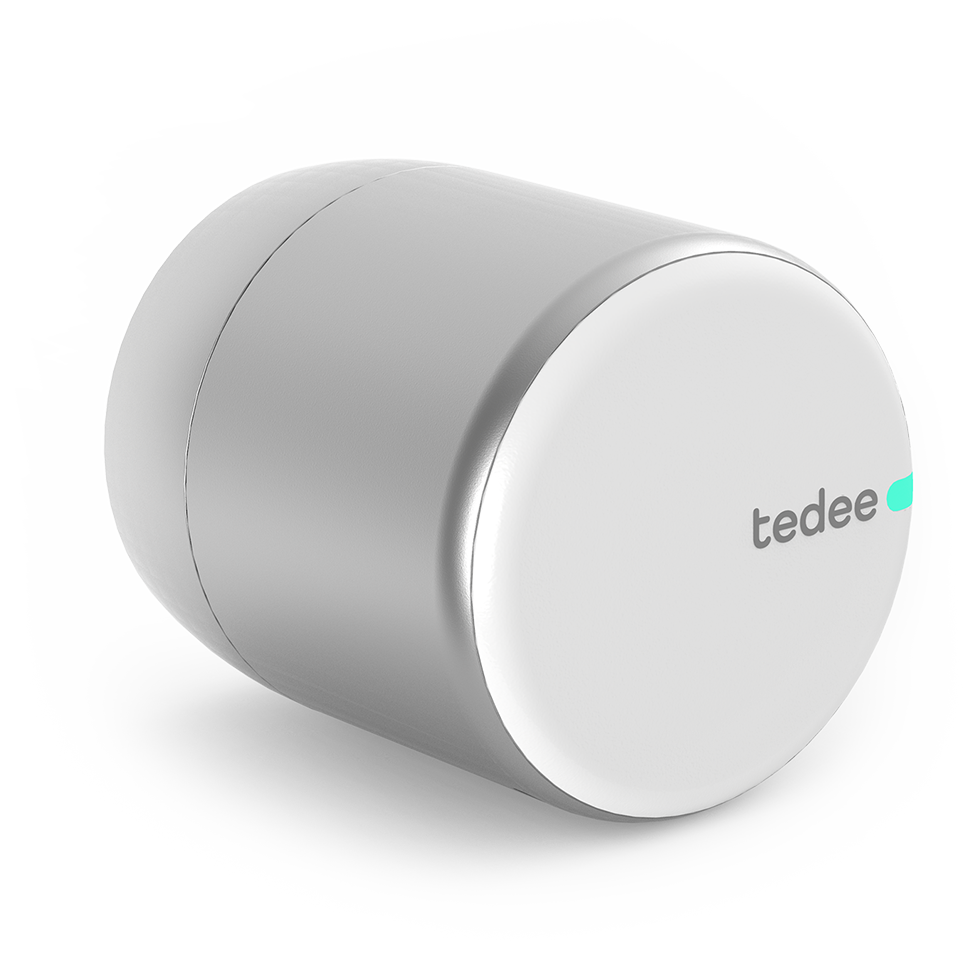
Tedee Status
Content languageEnglish
Description
Getting started
This Library lets you get the lock state and battery level from any tedee lock in Loxone.
The state field may have the following values:
- 0 - uncalibrated - 1 - calibrating - 2 - unlocked - 3 - semi_locked - 4 - unlocking - 5 - locking - 6 - locked - 7 - spring_pulled - 8 - pulling - 9 - unknown - 255 - unpulling
The batteryLevel field may have the following values:
- 0-100 battery level in percentage - 255 if battery level is not known
We assume that you have already installed the Tedee Lock at your door and have used the tedee iOS or Android App to install both the Tedee Lock and Bridge. Here are some key points to get you started with the integration:
- Initial Setup: To get started, you'll need a Tedee Bridge connected to your local network. Importantly, the bridge must have internet access to obtain and periodically refresh an access certificate for paired devices. - Local Network: The API functions over your local network, allowing your integrations to communicate directly with the Tedee Bridge without requiring external internet access for the API calls. - Device Pairing: Make sure you have at least one Tedee Lock paired with the bridge to control it via the API.
Enabling Bridge API
Before you can use the API you must enable it on the Bridge using Tedee mobile application. Open Tedee app and go to selected Bridge -> Settings -> API -> then toggle the switch button.
As we cannot handle the token encryption in Loxone we need to switch "Encrypted token" off. Please make sure the local network is secured!
From the API view we need the following two values:
- Token: This is the actual token that must be included in every API request for authentication, functioning similarly to a password, so keep it secure. - IP Address: Indicates the local network address of the Tedee Bridge where the API will be accessible.
The third value we need can be found in the Lock information. Go to selected Lock (need to be paired with the Bridge) -> Settings -> Information -> Device ID
- Device-ID: This is the ID of the lock we like to control.
Loxone Config
After the we enabled the Bridge-API we now simply need to replace the obtained Values with the placeholders in the template:
- IP Address: Replace the IP Address with the <BRIDGEIPADDRESS> in the "Tedee Status VI" Address Field. - Device-ID: Replace the Device-ID with the <LOCKDEVICEID> in the "Tedee Status VI" Address Field. - Token: Replace the Token with the <APITOKEN> in the "Tedee Status VI" Address Field.
Please, see the attached config file: "Config File Polling 10s" for reading the lock status every 10 seconds.
Webhooks / Callbacks
Webhooks allow information from the Tedee Bridge to arrive in the Loxone system instantly (whereas previously, when integrated through the HTTP virtual input, there was a 10-second delay).
How to do it?
First, download the ready-made "Tedee Webhooks" file. You’ll find two options there (HTTP or via Virtual Text Input).
Here, we're describing the second option: "Virtual Text Input".
- Log in to the Bridge and authorize it correctly:
- Go to the "Callback" tab and click "Try it out":
- Fill in the Request body:
[ { "id": 1, "url": "http://<IP_MS>/dev/sps/io/<VTI>", "method": "GET+NO_PARAMS", "headers": [ { "Authorization": "Basic <Authorization>" } ] } ]
Explanations:
IP_MS -> IP address of the Miniserver VTI -> Name of the virtual text input used in Loxone Config Authorization -> Login credentials, which you will get from the steps below
- Use a tool like Postman
Enter the request and, in the "Authorization" section, choose "Basic Auth" and on the right side, enter the login credentials (note: this can be an admin or a dedicated user created with permissions for Web/App and the virtual text input used).
- After sending the request, go to the "Console":
There you’ll see what you need:
- After filling in the Request body from step 3, click "Execute"
That's it! The rest is done in Loxone Config.
Inputs and outputs · 2
| Name | Type | Command | Unit |
|---|---|---|---|
| getState | VirtualInHttp | "state":\v | <v.1> |
| getBatteryLevel | VirtualInHttp | "batteryLevel":\v | <v.1> |
FAQ
No questions have been answered yet.
Questions and answers
Tedee Status webhooks
OpenHi, I followed the clear instruction about the webhook implementation. Every thing works well including the final curl: I get code 200 (successful). After that I implemented the Loxone flow that I downloaded from the site. Alas I do not see that de values are changing. Do I need to set a value in the Loxone blocks, or what am I forgetting.
Best regards
Rob
No replies
Log in to rate, comment or ask a question. Log in
Ratings and comments
No ratings or comments yet.
Log in to rate, comment or ask a question. Log in